Nishvault / Detaildrift / Saved inspection views
Guide visitors through an image with saved inspection views
A large diagram can contain useful details that are hard to find from its fitted overview. Detaildrift lets you name zoom-and-pan positions in one image, then export a viewer with native destination buttons. Visitors can jump to an authored detail and continue exploring with ordinary zoom, pan and Fit.
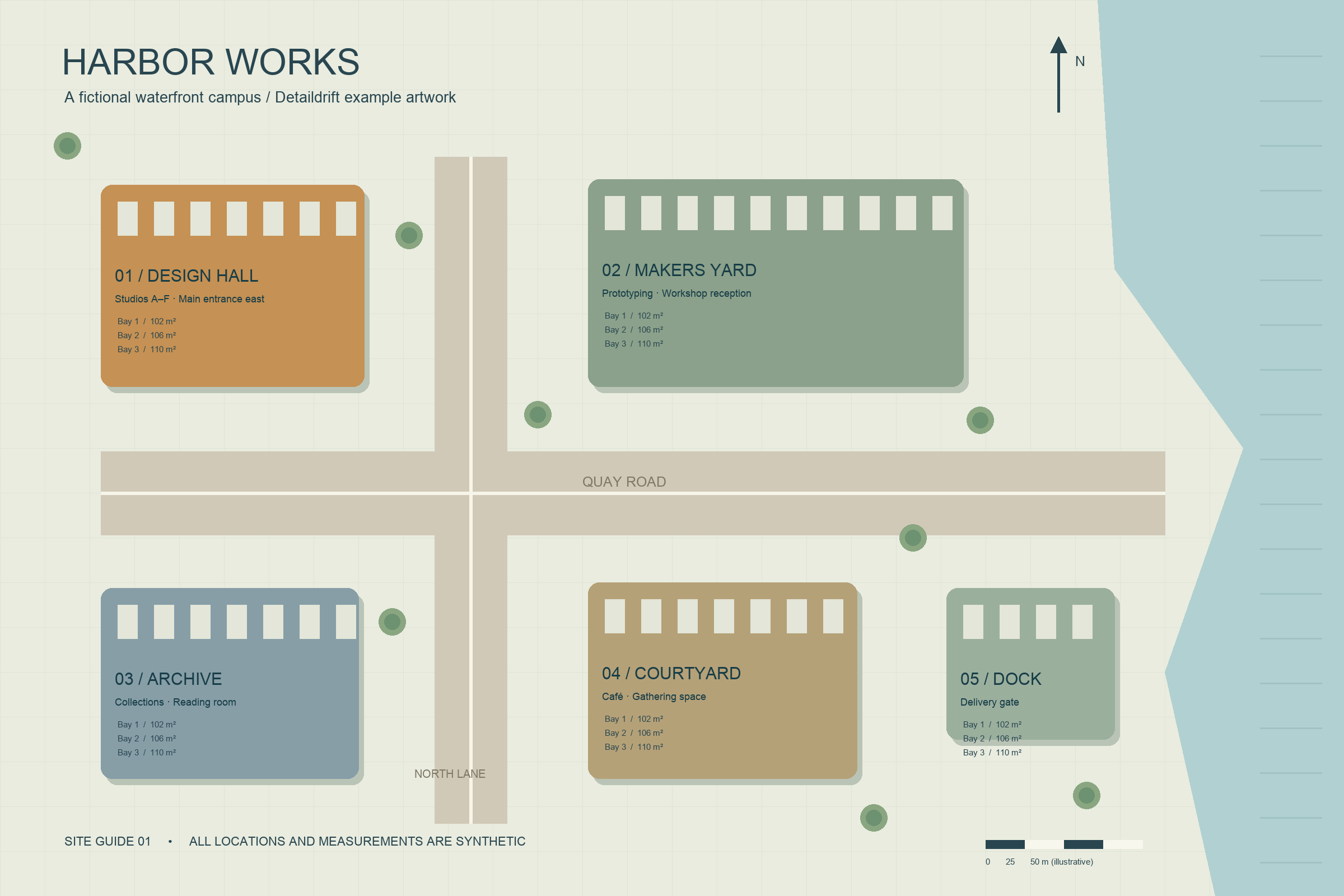
We will make Harbor Works — archive and entry inspection using the included fictional campus diagram. Two destinations, Archive reference and Design Hall entry, guide a visitor to its left-side buildings. All locations and measurements in this illustration are synthetic. The exercise is image navigation, not a real site plan or safety guide.
Open the complete free studio
The hosted studio and complete 18-file kit are free. The kit includes the reusable jQuery component, local studio, original illustration, editable sample project, standalone sample viewer and integration example. No account, checkout, subscription or paid API is required.
Extract the kit with its folders intact and follow the local HTTP setup. The studio reads its bundled sample and export runtime over local HTTP; launching the studio directly from a file URL is not supported. The finished standalone HTML includes its image and runtime and can be opened directly. No npm install or build is needed for the customer kit.
Author two meaningful destinations
- Save a project backup before replacing any custom work. Choose Use the Harbor Works example to start with the supplied diagram.
- Set Viewer title to “Harbor Works — archive and entry inspection.” Write an Image description explaining the five labeled buildings and water. Keep Maximum zoom at 8×, then choose Apply settings.
- Focus the image, zoom with + or the wheel, and drag until the Archive label and reading-room context are visible. Under Saved inspection views, enter “Archive reference” in Detail name and choose Save current view.
- Return to Fit, then zoom and pan to the Design Hall label and entrance text. Save that position as “Design Hall entry.”
- Choose each saved name and check that it returns to the intended part of the artwork. Use Fit to recover the whole diagram between checks.
The labels should explain why a visitor would choose a destination. This version stores up to six named positions. Names must be nonempty, unique without regard to letter case and at most 60 characters. Remove deletes a saved position from the current project, so retain a JSON backup before removing work you may need later.
Saved positions are navigation controls, not annotations, hotspots, links inside the image or image edits. The underlying raster remains unchanged. Provide a useful text description or separate text equivalent if the diagram conveys information that cannot be understood visually.
Understand Fit, zoom and bounded positions
Maximum zoom is relative to the fitted image, not a promise of a particular source-pixel scale. Fit is the minimum magnification. Actual pixels respects the configured maximum and may reach that bound first for a very large image.
Each saved view contains normalized zoom and center values. The component constrains movement to the image bounds. A destination near an edge can be clamped differently after the host changes shape; a narrow screen is not guaranteed to show an identical crop. Review both destinations in the actual wide and narrow output.
With the viewer focused, +/− zoom, arrow keys pan, F or 0 fits and 1 requests actual pixels. Wheel zoom only activates while the viewer or its controls have focus, leaving normal page scrolling available otherwise. Keyboard controls and buttons provide alternatives to gestures. Physical touch and other browser engines need their own integration checks.
Keep the project and inspect the finished HTML
Save project retains the image, settings, current view and named inspection views. Open project and choose that downloaded JSON, then revisit Archive reference and Design Hall entry. A browser draft is convenient, but large artwork or cleared/private storage can remove it; keep a downloaded copy.
Version 1 projects without the optional inspectionViews array still open. A new image clears saved positions so they cannot silently refer to unrelated artwork. Lowering the maximum zoom clamps saved magnifications when settings are applied or downloaded. Save a separate backup before replacing an image or changing limits.
Choose Export standalone HTML, open the actual downloaded file, and test both destination buttons, ordinary zoom, Fit and keyboard focus. The export includes its image, jQuery, geometry, component and styles. The buttons wrap on narrow screens and the file needs no external runtime service. Sharing the file shares the complete image and saved positions.
An older Detaildrift runtime ignores the optional saved-view field. Re-export from the current studio to get the destination buttons. For a CMS, host the working output in an accepted iframe or integrate the component; pasting a full HTML document into a text field may be stripped by that CMS. Follow the destination site's security policy.
Use named positions in a jQuery integration
The component API is unchanged. Use setState with normalized positions after the image is ready. This small example uses the supplied artwork and two approximate destinations for a 3× inspection. Save it as harbor-inspection.html at the extracted kit root so its relative paths resolve:
<!doctype html>
<html lang="en"><head>
<meta charset="utf-8">
<meta name="viewport" content="width=device-width,initial-scale=1">
<title>Fictional Harbor Works inspection exercise</title>
<link rel="stylesheet" href="app/detaildrift.css">
</head><body>
<nav aria-label="Image inspection destinations">
  <button id="archive" type="button" disabled>Archive reference</button>
  <button id="entry" type="button" disabled>Design Hall entry</button>
</nav>
<div id="inspection-viewer" style="height:540px"></div>
<script src="vendor/jquery-3.7.1.min.js"></script>
<script src="app/geometry.js"></script>
<script src="app/detaildrift.js"></script>
<script>
const destinations = {
  archive: { zoom: 3, centerX: 0.18, centerY: 0.76 },
  entry:   { zoom: 3, centerX: 0.18, centerY: 0.32 }
};
const viewer = jQuery('#inspection-viewer');
viewer.on('detaildrift:ready', function () {
  document.getElementById('archive').disabled = false;
  document.getElementById('entry').disabled = false;
}).detaildrift({
  src: 'samples/harbor-works.png',
  alt: 'Fictional Harbor Works diagram with Design Hall and Archive on the left, Makers Yard and Courtyard in the middle, and Dock beside the water.',
  maxZoom: 8
});
for (const id of Object.keys(destinations)) {
  document.getElementById(id).addEventListener('click', function () {
    viewer.detaildrift('setState', destinations[id]);
  });
}
</script>
</body></html>
Ready is bound before initialization, and buttons stay disabled until the image loads. Give each viewer its own host ID and state. Keep your site's existing compatible jQuery instance rather than loading it twice; the bundled example uses jQuery 3.7.1. getState returns a defensive state copy; destroy removes the instance's listeners and observer and restores the original host content. The kit's two-instance example covers cleanup and reinitialization.
The numeric positions are illustrative, not geographic coordinates. They are constrained to valid image bounds, so use the studio's visually authored positions for your own artwork rather than copying these numbers blindly. The initializer and current studio/export workflow were checked locally with simulated image loading and dimensions; actual rendering must still be assessed in your supported browser and container.
Choose suitable artwork and preserve data boundaries
The studio accepts PNG, JPEG, WebP or GIF up to 8 MiB and 40 million pixels. SVG uploads are excluded. Invalid image or project imports preserve the current artwork and view. This is a single-raster viewer, not an image editor, conversion tool or tiled gigapixel system. For a wide horizontal panorama, the Horizonweft panorama guide describes a different viewing workflow.
The free-use terms permit personal and commercial project use and sharing, embedding or selling finished outputs. Redistribution or resale of the whole editor/package or a competing rebranded copy is excluded. User artwork remains subject to its rights holders. Keep jQuery's separate MIT notice. Guaranteed support, an SLA and an update schedule are not included; optional custom integration needs a separate agreed scope.
The local studio reads bundled files over local HTTP, without uploading artwork. Standalone outputs contain no measurement adapter or external runtime request. Hosted Nishvault diagnostics are separate and respect Do Not Track and Global Privacy Control; they exclude images, projects, titles, alt text, filenames and saved coordinates. Event counts do not establish people, sales or retained files. The product page links the current free kit and supported boundaries.